

The City of Toronto Login is a new, secure way to access select City services online. Services that use the City of Toronto Login can be accessed using the same username and password.
You can use your City of Toronto Login only with the following services. Find information below to link each service to your City of Toronto Login:
More online services will continue to become available through the City of Toronto Login. Currently, only the services listed above can be accessed with the City of Toronto Login.
Try the steps below:
Select “Resend PIN” to get new PIN emailed. Note that each PIN is valid for 15 minutes.
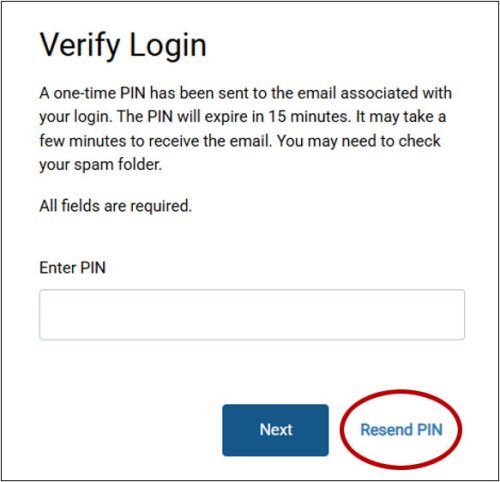
If an incorrect PIN is entered too many times, your login is temporarily locked but you will be able to log in after 15 minutes to get a new PIN.
If you receive an email that you did not request (e.g., PIN verification, password reset, username change), please reset your password immediately using the Forgot Password link on the login screen. If you are unable to login or wish to report suspicious activity, contact the City of Toronto service(s) connected to your login.
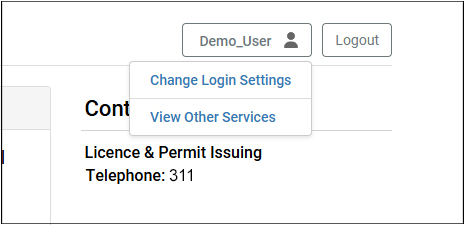
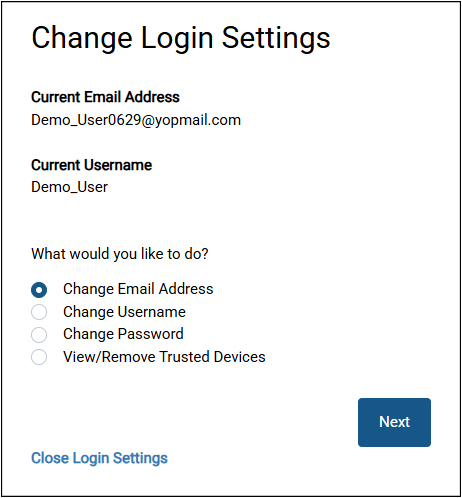
Updating your email or username here only affects your City of Toronto Login. It does not automatically update your contact information with other services. Find more details.
No, changes made to your City of Toronto Login profile (such as your email or username) do not carry over to other City services.
You will need to update information with each service separately.
The next time you log in after creating your login, you will be prompted for a PIN and then asked if you want to trust the device. Selecting “Yes” will remember the device and reduce the PIN verification step in the future. If you are still being asked for a PIN on the device you trusted, make sure you use a supported browser (e.g., Chrome, Edge, or Firefox) and turn off any active virtual private networks (VPNs) on your device before logging in.
To remove a trusted device, log in and select your username in the upper right area of the screen. Select “Change Login Settings”. Then select ”View/Remove trusted devices” and choose the device you want to remove.
This may be due to temporary system maintenance or outage. Please try again later. If the issue continues after 24 hours, get support by contacting the service you need to use.
Ensure you’re still logged in and your session hasn’t timed out. If the issue continues, get support by contacting the service you need to use.
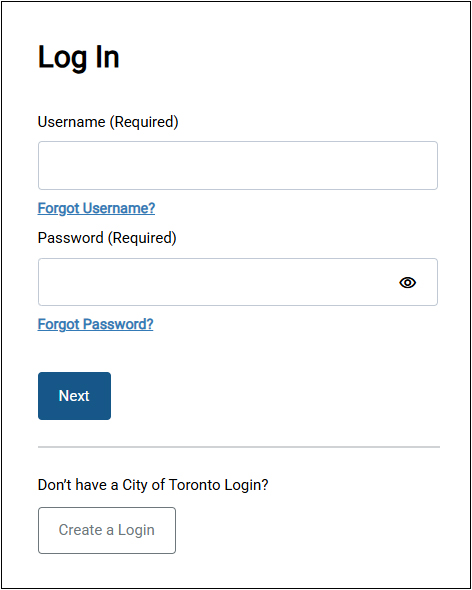
Usernames must be unique and not already in use. You can create a different username by adding numbers or using a variation (e.g., “JaneLee01”).
Your login is temporarily locked if an incorrect password was entered three times. To unlock it, select “Reset Password” or “Forgot Password” and follow the steps to reset your password. You will be asked to provide the email associated with your login and you will need to retrieve a one-time PIN from your email. Once completed, you can log in using your new password.
If you are still locked out after resetting your password, get support by contacting the service you need to use.
If you have tried all the steps to resolve your issues with the City of Toronto Login, get support by contacting the service you need to use.